User guide Maps on your watch
Maps and routes on your watch
A real map under your route, even with no signal and no iPhone: download an area once, and your watch keeps it.
Where iPhone › Routes
Your maps
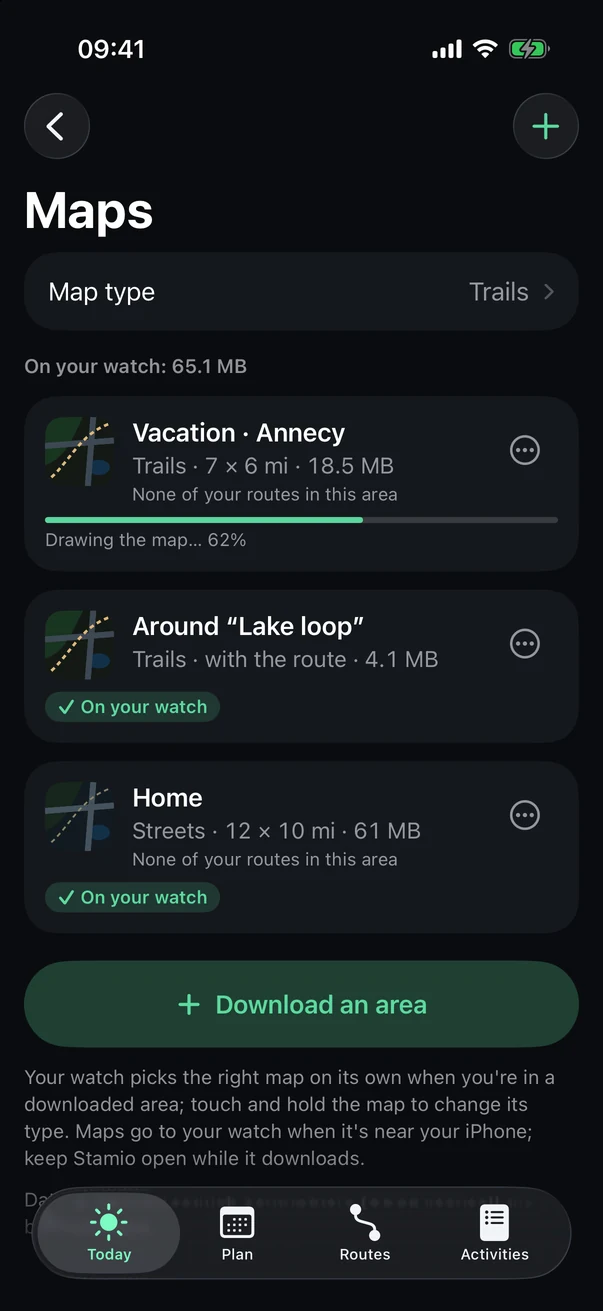
On the Routes tab, tap Maps on your watch.
- Map type
Trails or Streets, for your next areas.
- Your areas
Their size, what they cover, and whether they're on your watch. Use ⋯ to rename or delete one.
- Download an area
Tip Your watch picks the right map on its own when you're inside a downloaded area. Anywhere else, Apple Maps steps in if your watch has a connection.
Download an area
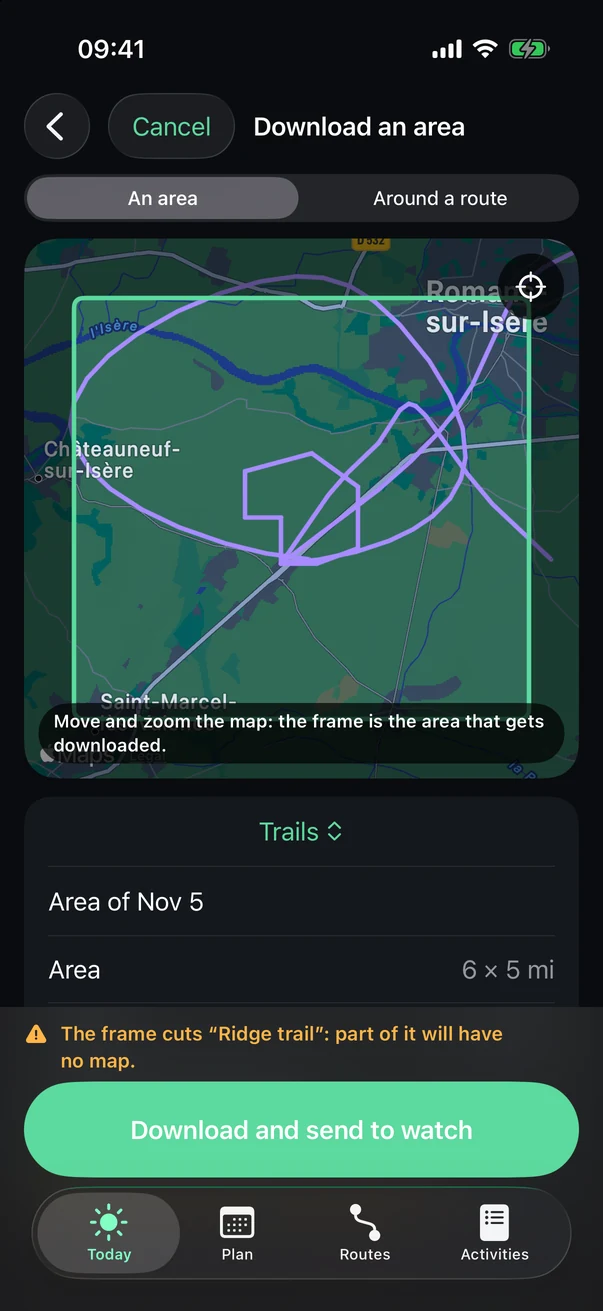
- An area, or around a route
- The frame
Move and zoom the map: what's inside the frame gets downloaded.
- Map type
- Download and send
Stamio draws the map, then sends it once your watch is near your iPhone. Keep Stamio open while it downloads.
A route
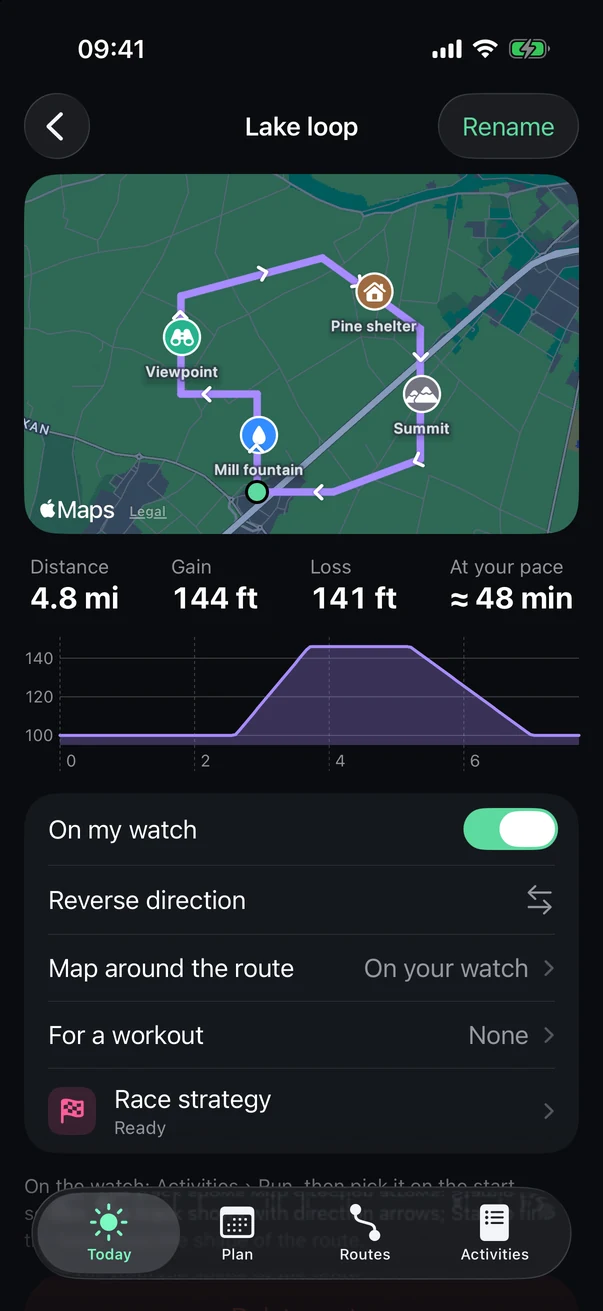
Tap a route on the Routes tab. Map around the route downloads just the strip of map along it, without a whole area.
- The route
Its direction, and the points of interest from the file (viewpoint, hut and so on).
- On my watch
So you can pick it on the start screen.
- Reverse direction
- For a workout
Make it the route for a workout in your plan.
- Race strategy
Your pace, section by section, to run this route in a target time.
See also: Offline maps and navigation, Race strategy.