User guide During your run
During your run, on your watch
From start to summary: what each screen shows, where the controls are, and what you can set on your iPhone.
Where Watch › Stamio › Activities
The start screen
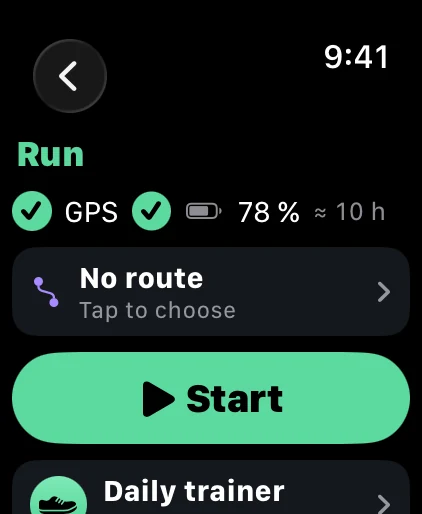
- Open Stamio on your watch, then Activities.
- Tap an activity, or today's workout at the top of the list.
- GPS
The green check means GPS is ready.
- Battery
Your watch's battery and how long it should last for this activity.
- Route
Tap to follow a route, or create one right there.
- Start
Opens your screens with the timer at 0. On an Ultra, the Action button starts the activity; on any watch, swipe right and tap Start.
- Shoes
The pair for this run, so its mileage adds up.
Your data screens
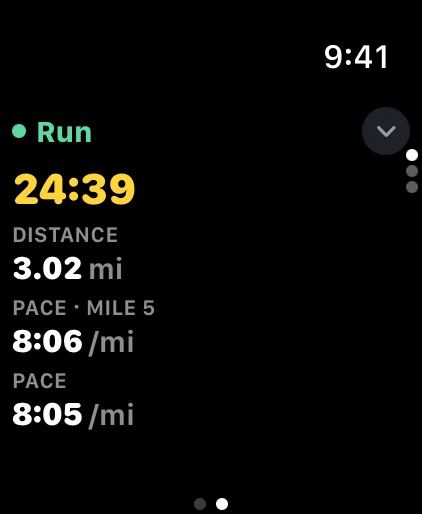
- Fields
From 1 to 6 per screen, chosen on your iPhone (see below).
- Your other screens
Turn the Digital Crown: map, zones, laps, workout step…
- Double tap
Its icon shows what it does: here, next page.
- Controls
Swipe right for pause, lap, end and lock.
Tip While your run is paused, touch and hold a field to change it right on your watch.
A guided workout
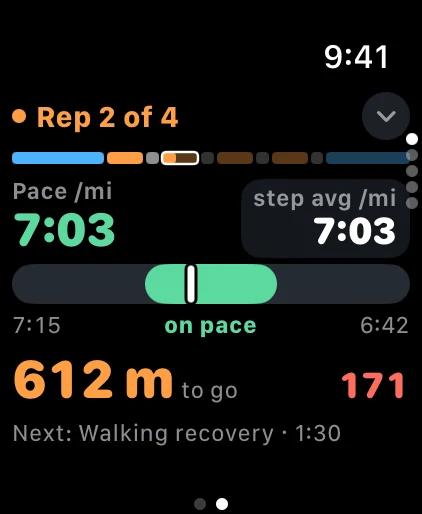
The voice calls out each step 30 seconds ahead and sums it up when it ends.
- The step and the workout
The current step, then the whole workout as one bar.
- Live pace
Smoothed, so you can read it mid-effort.
- Field of your choice
Step average by default. Change it in Settings › Your watch › Run screens.
- Target range
The marker shows where you are; your watch lets you know if you drift out.
- What's left
Distance or time left in the step.
- Heart rate
- Next
The step that comes next.
Map and navigation
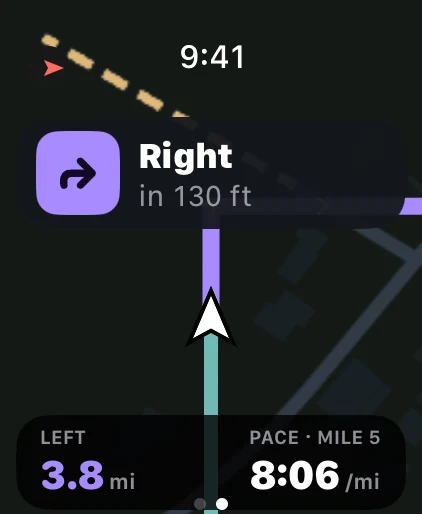
- Next turn
And how far away it is; the voice calls it out too.
- You, on the route
By default, the direction you're running stays at the top.
- What's left
Distance to the end of the route.
- Field of your choice
0, 2 or 4 fields on the map screen.
Tip Maps go to your watch from your iPhone: Routes tab › Maps on your watch.
Pause, lap, end, lock
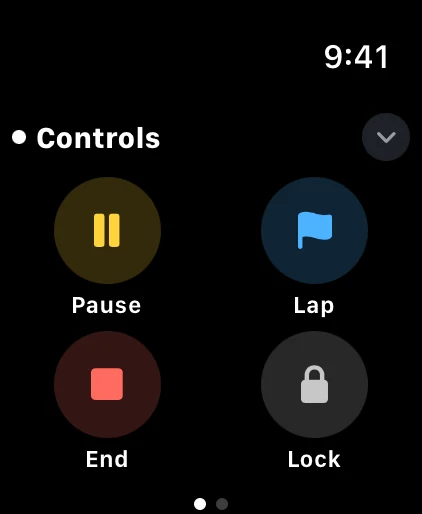
From your screens, swipe right.
- Pause
Turns into Resume while your run is paused.
- Lap
A manual lap, on top of auto laps if they're on.
- End
Opens the screen to finish (below).
- Lock
For rain: the screen ignores touches. Turn the Digital Crown to unlock; the Action button and double tap always work.
Ending without mistakes
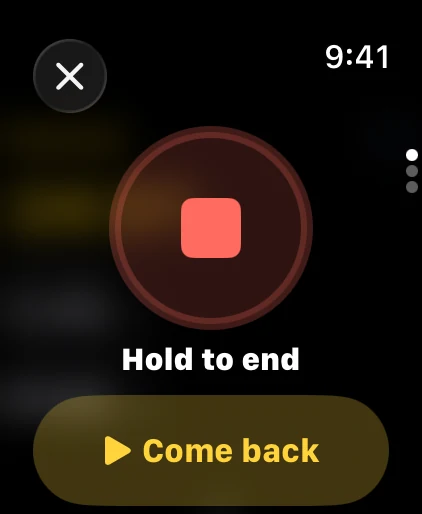
A workout never ends by accident: it takes this gesture. Two exceptions, so nothing gets lost: after 20 minutes without moving, your watch asks “Done with your run?”; with no answer, the workout is ended and saved after 2 hours without movement. And if your battery drops to 3%, it’s ended and saved while there’s still enough power to write it.
- Hold to end
One second of holding, so a run never stops by accident.
- Resume
In case you landed here by mistake.
The summary
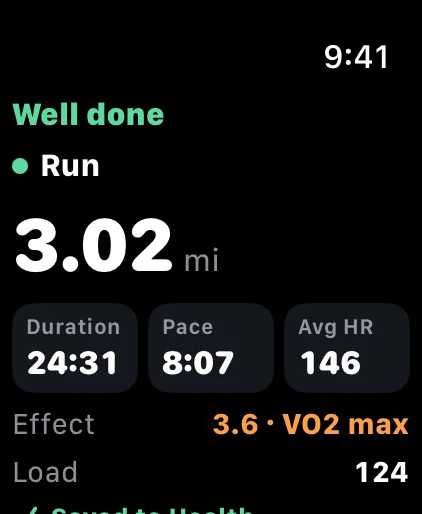
The run is saved to Health. Its full details (map, laps, charts) are on your iPhone, in the Activities tab.
- Distance
- Duration, pace, heart rate
Your averages for the run.
- Effect
What the run trained, and how much.
- Load
How much it counts toward your training.
Set up your screens on iPhone
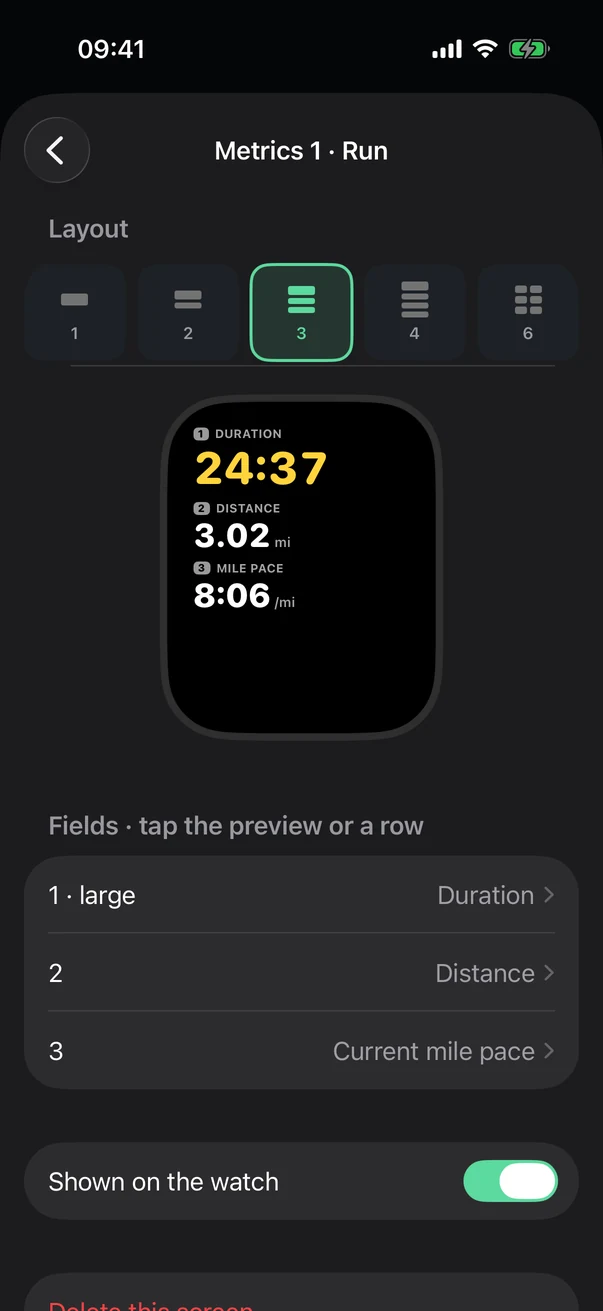
Settings › Your watch › Run screens, then an activity and a screen.
- Layout
From 1 to 6 fields.
- Preview
True to your watch's size. Tap a field to change it.
- Fields
Same thing, as a list.
- Shown on the watch
Turn this screen on or off.
Rain and buttons
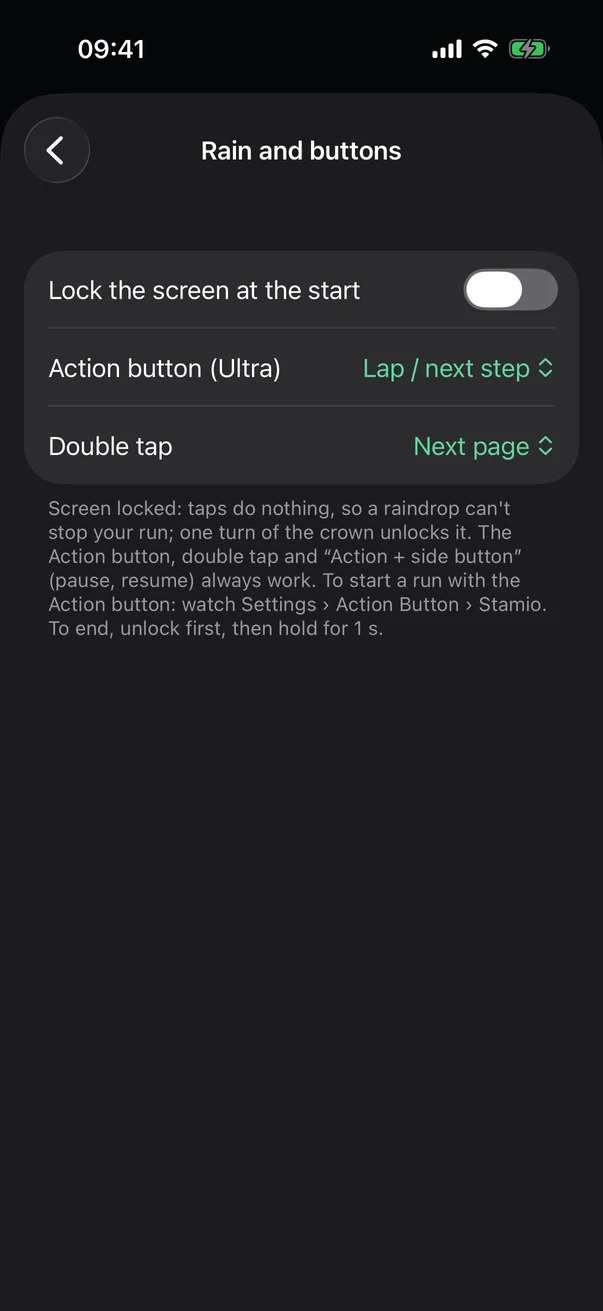
Settings › Your watch › Rain and buttons.
- Lock the screen at the start
For rainy days: locked as soon as you hit Start.
- Action button (Ultra)
During your run: lap or next step, next page, or pause.
- Double tap
Same choices, on watches that support it.
Tip To start a run with the Action button: watch Settings › Action Button › Stamio.
See also: Screens, buttons, rain and battery, in detail, Guided workouts.